

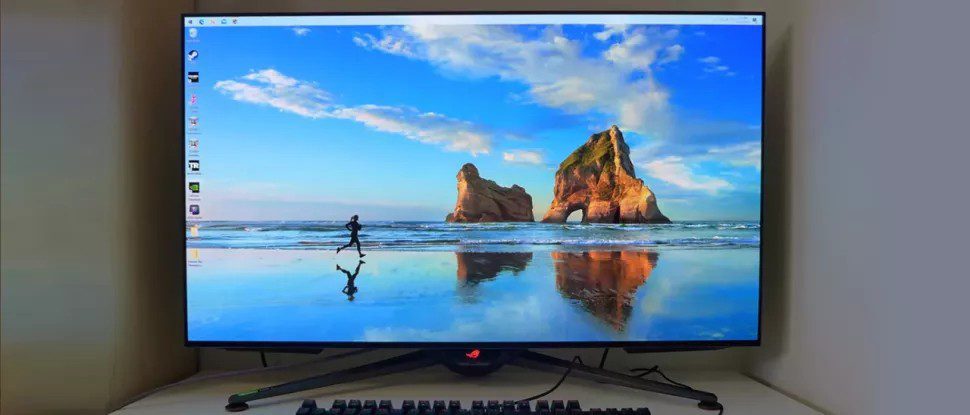
Asus ROG Swift PG42UQ 4K OLED Review: Stunning in Every Respect
The Asus ROG Swift PG42UQ is a 42-inch 4K OLED gaming monitor with 138 Hz, Adaptive-Sync, HDR and extended color.
 Though OLED isn’t quite ready to claim desktop dominance from LCD on the best gaming monitors, more products are entering the pipeline. These new introductions mean more choices and, hopefully, lower prices. One obstacle to wide acceptance has been size. Early OLED computer monitors weren’t much smaller than big-screen TVs, making them difficult to integrate into an office-sized productivity and entertainment system.
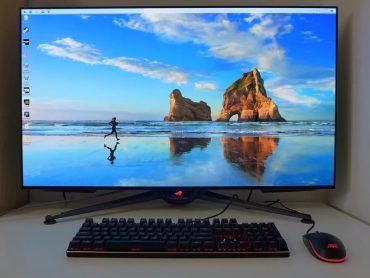
Asus has made a step towards progress with its new 42-inch OLED display, the ROG Swift PG42UQ. Like all new genres, the first products are premium (read: expensive) items, but there is a lot to like. The PG42UQ delivers 4K resolution with an overclocked 138 Hz refresh rate, Adaptive-Sync, HDR10 and extended color. A special screen layer keeps the image bright and colorful under typical room lighting. In addition, a large array of connectivity options makes it suitable for various configurations, including computers, consoles and streaming boxes.
Though OLED isn’t quite ready to claim desktop dominance from LCD on the best gaming monitors, more products are entering the pipeline. These new introductions mean more choices and, hopefully, lower prices. One obstacle to wide acceptance has been size. Early OLED computer monitors weren’t much smaller than big-screen TVs, making them difficult to integrate into an office-sized productivity and entertainment system.
Asus has made a step towards progress with its new 42-inch OLED display, the ROG Swift PG42UQ. Like all new genres, the first products are premium (read: expensive) items, but there is a lot to like. The PG42UQ delivers 4K resolution with an overclocked 138 Hz refresh rate, Adaptive-Sync, HDR10 and extended color. A special screen layer keeps the image bright and colorful under typical room lighting. In addition, a large array of connectivity options makes it suitable for various configurations, including computers, consoles and streaming boxes.
Asus PG42UQ Specs
| Panel Type / Backlight | Organic Light-Emitting Diode (OLED) |
| Screen Size / Aspect Ratio | 42 inches / 16:9 |
| Max Resolution & Refresh Rate | 3840x2160 @ 120 Hz |
| 138 Hz w/overclock | |
| FreeSync & G-Sync | |
| Native Color Depth & Gamut | 10-bit / DCI-P3 |
| HDR10 | |
| Response Time (GTG) | 0.1ms |
| Brightness (mfr) | 450 nits |
| Contrast (mfr) | 1,500,000:1 |
| Speakers | 2x 10w, 1x 15w subwoofer |
| Video Inputs | 1x DisplayPort 1.4 |
| 2x HDMI 2.1, 2x HDMI 2.0 | |
| Audio | S/PDIF optical output |
| 3.5mm headphone output | |
| USB 3.2 | 1x up, 3x down |
| Power Consumption | 85.5w, brightness @ maximum |
| Panel Dimensions | 36.7 x 24.1 x 10 inches |
| WxHxD w/base | (932 x 611 x 255mm) |
| Panel Thickness | 1.5 inches (37mm) |
| Bezel Width | Top/sides: 0.2 inch (6mm) |
| Bottom: 0.4 inch (10mm) | |
| Weight | 32.6 pounds (14.8kg) |
| Warranty | 3 years |
The PG42UQ delivers a practical 450 nits peak for HDR and unmeasurable black levels. Asus claims 1.5 million to one contrast, but in practice, it is infinite because it can’t be measured by any instrument. OLED panels have a visual quality that simply cannot be duplicated by an LCD of any type.
The color gamut is wide, covering nearly 94% of DCI-P3 in my tests. I’ve measured two other screens that top 100% from Aorus and Alienware, but visually, the PG42UQ is stunning. A factory datasheet guarantees color accuracy, and I confirmed this. You won’t need to calibrate this monitor.
HDR10 is supported over both HDMI and DisplayPort, and the panel has a native 10-bit color depth. Asus provides three HDR modes and adjustable brightness, which most HDR monitors do not offer.
Gaming cred comes from a 138 Hz refresh rate achieved via an overclock setting. That gives the PG42UQ a slight edge over other 4K OLEDs, which top out at 120 Hz. Of course, lower-resolution WQHD can provide 165 Hz and 240 Hz. Adaptive-Sync comes in the form of Nvidia G-Sync and AMD FreeSync certification. And with a claimed 0.1 ms response time, motion blur should be non-existent.
Extras include Asus’ GamePlus array of gaming aids like aiming points, frame counter and timers. The panel also has a quarter-inch tripod mount socket at the top, with a USB port nearby, for webcams and other compatible peripherals. Two additional USB 3.2 ports underneath let you plug in your gear. 10-watt amps drive the built-in speakers and there’s an additional 15-watt subwoofer inside to round out the bass.
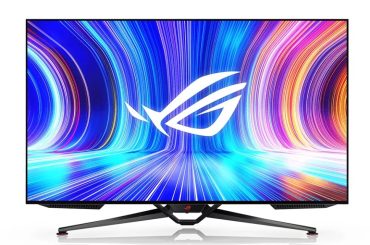
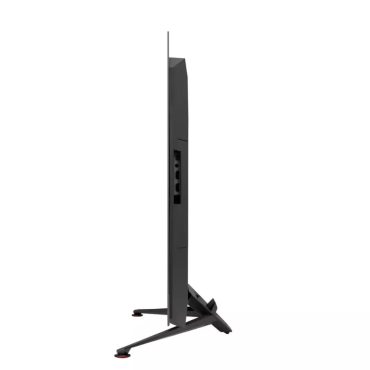
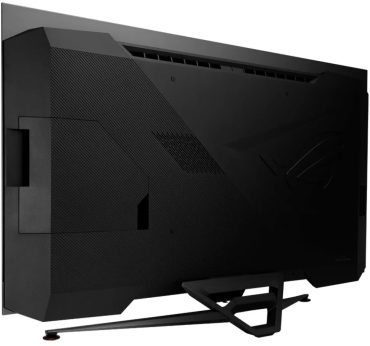
 One of the great things about OLED monitors is how thin their bezels can be. The PG42UQ measures just 6mm around the top and sides and 10mm at the bottom, flush, of course. The panel isn’t super thin, but it is slimmer than the same-sized LCD at just 1.5 inches. If you’d rather mount it, the VESA lug pattern is 300 mm, which you’ll find in TV brackets. With a panel-only weight of nearly 30 pounds, an arm probably won’t work.
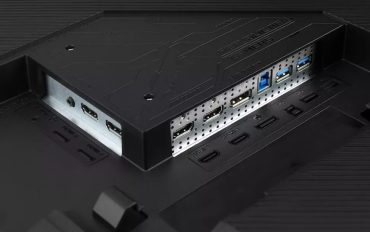
Under the input cover, you’ll find four HDMI ports, two 2.0 and two 2.1, along with a DisplayPort 1.4 that supports Display Stream Compression (DSC) and 10-bit operation. Headphones plug into a 3.5mm jack and there’s an optical digital (S/PDIF) port so you can hook the PG42UQ up to an AV receiver or surround processor in a home theater application.
At the top, you’ll find a quarter-inch tripod socket with a rubber surround and a USB port, perfect for installing a webcam. The back is conservatively styled for Asus and features a simple pattern of molded-in lines plus the ROG logo. There is no dramatic LED lighting here, only a glowing logo in front which can be switched off if desired. The stand is a TV-style affair made from cast aluminum. It’s plenty deep enough to keep the panel steady and features five degrees tilt either forward or back. The back tilt is perfect for the average desktop as the panel is elevated just three inches. Underneath the glowing logo is an OSD joystick along with keys for power and cancel. The grilled protrusions on either side house the speakers, 10 watts each, plus an internal 15-watt subwoofer. The sound quality is very good, with plenty of clarity, volume and decent bass.
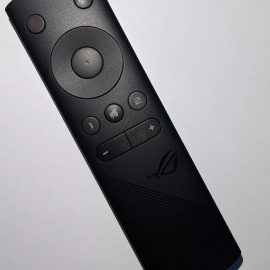
If you’d rather not reach out to adjust the PG42UQ, an included handheld remote covers all monitor functions. It’s infrared-based, so you’ll have to point it at the logo in the bottom center. The OSD can be made large enough to be read from eight to ten feet away.
One of the great things about OLED monitors is how thin their bezels can be. The PG42UQ measures just 6mm around the top and sides and 10mm at the bottom, flush, of course. The panel isn’t super thin, but it is slimmer than the same-sized LCD at just 1.5 inches. If you’d rather mount it, the VESA lug pattern is 300 mm, which you’ll find in TV brackets. With a panel-only weight of nearly 30 pounds, an arm probably won’t work.
Under the input cover, you’ll find four HDMI ports, two 2.0 and two 2.1, along with a DisplayPort 1.4 that supports Display Stream Compression (DSC) and 10-bit operation. Headphones plug into a 3.5mm jack and there’s an optical digital (S/PDIF) port so you can hook the PG42UQ up to an AV receiver or surround processor in a home theater application.
At the top, you’ll find a quarter-inch tripod socket with a rubber surround and a USB port, perfect for installing a webcam. The back is conservatively styled for Asus and features a simple pattern of molded-in lines plus the ROG logo. There is no dramatic LED lighting here, only a glowing logo in front which can be switched off if desired. The stand is a TV-style affair made from cast aluminum. It’s plenty deep enough to keep the panel steady and features five degrees tilt either forward or back. The back tilt is perfect for the average desktop as the panel is elevated just three inches. Underneath the glowing logo is an OSD joystick along with keys for power and cancel. The grilled protrusions on either side house the speakers, 10 watts each, plus an internal 15-watt subwoofer. The sound quality is very good, with plenty of clarity, volume and decent bass.
If you’d rather not reach out to adjust the PG42UQ, an included handheld remote covers all monitor functions. It’s infrared-based, so you’ll have to point it at the logo in the bottom center. The OSD can be made large enough to be read from eight to ten feet away.
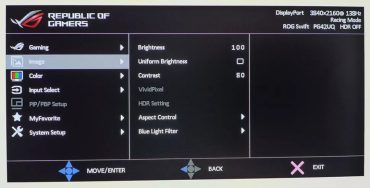
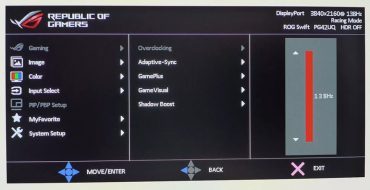
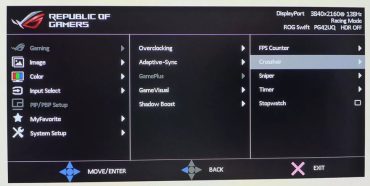
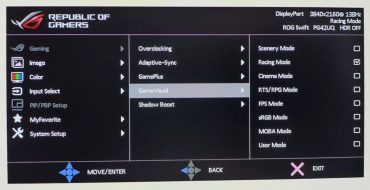
 Asus always prioritizes gaming modes, and the first thing you’ll want to do is switch on the PG42UQ’s overclock and turn the action up to 138 Hz. It was reliable with no hiccups during our time with the monitor. GamePlus offers an array of play aids, including a frame counter, aiming points, sniper mode, countdown timer and a stopwatch. The sniper mode magnifies the center of the screen anywhere from 1.2 to 2 times larger with a colored dot to help with aiming.
There are eight picture modes, including Racing, the default, sRGB for color-critical work and a User mode. Racing can be calibrated to a high standard though it is already visually perfect out of the box. You can also pick the color gamut without engaging sRGB if you wish. The Shadow Boost feature makes dark detail easier to see and has five fixed levels and a dynamic option.
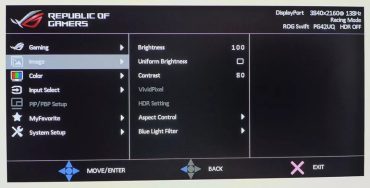
In the Image menu, you’ll find a checkbox called Uniform Brightness, which is important. It’s off by default, meaning the panel will vary in brightness depending on the average picture level. In vintage parlance from the era of CRT, we called this “DC restoration.” It is a process that keeps a display’s power supply from overloading when the picture has a lot of bright content. Modern-day plasmas and OLEDs still employ this to be more power efficient and to preserve the panel’s lifespan. If you check the box, the picture will not change brightness, but it will be about 50% darker. While this could be considered a more purist way to run the PG42UQ or any OLED, it is not an attractive option. I recommend leaving the box unchecked for the best possible image under all circumstances.
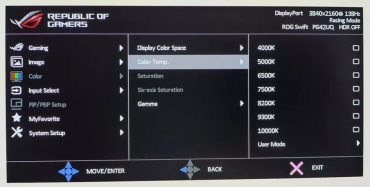
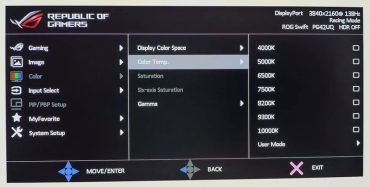
In the Color menu, you’ll find calibration options that include two color spaces, color temps by Kelvin value with user mode, and gamma presets. If you simply leave the PG42UQ in Racing mode, you won’t need to change anything here unless you want sRGB. That’s easy to engage without disturbing other parameters.
The joystick and remote nav pad can be programmed for various shortcuts like brightness, volume, input, GamePlus and more. The remote has two additional keys that the user can also program.
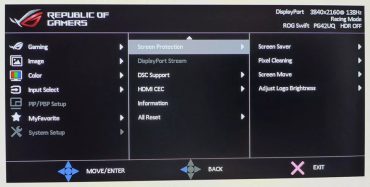
Asus has included three panel care options to preserve the life and quality of the PG42UQ. A screen saver can be set to come on after a period of inactivity. Pixel Cleaning is a process that refreshes the entire screen to equalize pixel use and prevent burn-in. Once initiated, it takes about six minutes to complete. Screen Move is an orbiter that shifts the image by a few pixels. Adjust Logo Brightness dims the lower right corner of the screen to prevent burn-in from channel logos.
Asus always prioritizes gaming modes, and the first thing you’ll want to do is switch on the PG42UQ’s overclock and turn the action up to 138 Hz. It was reliable with no hiccups during our time with the monitor. GamePlus offers an array of play aids, including a frame counter, aiming points, sniper mode, countdown timer and a stopwatch. The sniper mode magnifies the center of the screen anywhere from 1.2 to 2 times larger with a colored dot to help with aiming.
There are eight picture modes, including Racing, the default, sRGB for color-critical work and a User mode. Racing can be calibrated to a high standard though it is already visually perfect out of the box. You can also pick the color gamut without engaging sRGB if you wish. The Shadow Boost feature makes dark detail easier to see and has five fixed levels and a dynamic option.
In the Image menu, you’ll find a checkbox called Uniform Brightness, which is important. It’s off by default, meaning the panel will vary in brightness depending on the average picture level. In vintage parlance from the era of CRT, we called this “DC restoration.” It is a process that keeps a display’s power supply from overloading when the picture has a lot of bright content. Modern-day plasmas and OLEDs still employ this to be more power efficient and to preserve the panel’s lifespan. If you check the box, the picture will not change brightness, but it will be about 50% darker. While this could be considered a more purist way to run the PG42UQ or any OLED, it is not an attractive option. I recommend leaving the box unchecked for the best possible image under all circumstances.
In the Color menu, you’ll find calibration options that include two color spaces, color temps by Kelvin value with user mode, and gamma presets. If you simply leave the PG42UQ in Racing mode, you won’t need to change anything here unless you want sRGB. That’s easy to engage without disturbing other parameters.
The joystick and remote nav pad can be programmed for various shortcuts like brightness, volume, input, GamePlus and more. The remote has two additional keys that the user can also program.
Asus has included three panel care options to preserve the life and quality of the PG42UQ. A screen saver can be set to come on after a period of inactivity. Pixel Cleaning is a process that refreshes the entire screen to equalize pixel use and prevent burn-in. Once initiated, it takes about six minutes to complete. Screen Move is an orbiter that shifts the image by a few pixels. Adjust Logo Brightness dims the lower right corner of the screen to prevent burn-in from channel logos.
Assembly and Accessories
The PG42UQ is a premium experience from the moment you lift off the outer carton. The cable bundle comes in a nice fabric zippered bag and includes DisplayPort, HDMI and USB along with a remote control and an IEC cord for the internal power supply. The base bolts on with four included fasteners and here, I had an interesting experience. The bolts are Allen rather than the usual Phillips; try as I might, I could not find an Allen key anywhere in the package. I retrieved a 3 mm tool from my garage and attached the stand. I discovered an Allen key clipped inside when I removed the input panel cover. Someone at Asus actually took the time to engineer this molded part to include Allen key storage. I call that attention to detail though I’d rather the Allen key were simply bagged with the fasteners. You just have to remove the input cover to find it.
One of the great things about OLED monitors is how thin their bezels can be. The PG42UQ measures just 6mm around the top and sides and 10mm at the bottom, flush, of course. The panel isn’t super thin, but it is slimmer than the same-sized LCD at just 1.5 inches. If you’d rather mount it, the VESA lug pattern is 300 mm, which you’ll find in TV brackets. With a panel-only weight of nearly 30 pounds, an arm probably won’t work.
Under the input cover, you’ll find four HDMI ports, two 2.0 and two 2.1, along with a DisplayPort 1.4 that supports Display Stream Compression (DSC) and 10-bit operation. Headphones plug into a 3.5mm jack and there’s an optical digital (S/PDIF) port so you can hook the PG42UQ up to an AV receiver or surround processor in a home theater application.
At the top, you’ll find a quarter-inch tripod socket with a rubber surround and a USB port, perfect for installing a webcam. The back is conservatively styled for Asus and features a simple pattern of molded-in lines plus the ROG logo. There is no dramatic LED lighting here, only a glowing logo in front which can be switched off if desired. The stand is a TV-style affair made from cast aluminum. It’s plenty deep enough to keep the panel steady and features five degrees tilt either forward or back. The back tilt is perfect for the average desktop as the panel is elevated just three inches. Underneath the glowing logo is an OSD joystick along with keys for power and cancel. The grilled protrusions on either side house the speakers, 10 watts each, plus an internal 15-watt subwoofer. The sound quality is very good, with plenty of clarity, volume and decent bass.
If you’d rather not reach out to adjust the PG42UQ, an included handheld remote covers all monitor functions. It’s infrared-based, so you’ll have to point it at the logo in the bottom center. The OSD can be made large enough to be read from eight to ten feet away.
OSD Features
Pressing the joystick or remote select key opens a comprehensive and well-organized OSD. The directional keys can also be programmed to provide quick access to various functions.
Asus always prioritizes gaming modes, and the first thing you’ll want to do is switch on the PG42UQ’s overclock and turn the action up to 138 Hz. It was reliable with no hiccups during our time with the monitor. GamePlus offers an array of play aids, including a frame counter, aiming points, sniper mode, countdown timer and a stopwatch. The sniper mode magnifies the center of the screen anywhere from 1.2 to 2 times larger with a colored dot to help with aiming.
There are eight picture modes, including Racing, the default, sRGB for color-critical work and a User mode. Racing can be calibrated to a high standard though it is already visually perfect out of the box. You can also pick the color gamut without engaging sRGB if you wish. The Shadow Boost feature makes dark detail easier to see and has five fixed levels and a dynamic option.
In the Image menu, you’ll find a checkbox called Uniform Brightness, which is important. It’s off by default, meaning the panel will vary in brightness depending on the average picture level. In vintage parlance from the era of CRT, we called this “DC restoration.” It is a process that keeps a display’s power supply from overloading when the picture has a lot of bright content. Modern-day plasmas and OLEDs still employ this to be more power efficient and to preserve the panel’s lifespan. If you check the box, the picture will not change brightness, but it will be about 50% darker. While this could be considered a more purist way to run the PG42UQ or any OLED, it is not an attractive option. I recommend leaving the box unchecked for the best possible image under all circumstances.
In the Color menu, you’ll find calibration options that include two color spaces, color temps by Kelvin value with user mode, and gamma presets. If you simply leave the PG42UQ in Racing mode, you won’t need to change anything here unless you want sRGB. That’s easy to engage without disturbing other parameters.
The joystick and remote nav pad can be programmed for various shortcuts like brightness, volume, input, GamePlus and more. The remote has two additional keys that the user can also program.
Asus has included three panel care options to preserve the life and quality of the PG42UQ. A screen saver can be set to come on after a period of inactivity. Pixel Cleaning is a process that refreshes the entire screen to equalize pixel use and prevent burn-in. Once initiated, it takes about six minutes to complete. Screen Move is an orbiter that shifts the image by a few pixels. Adjust Logo Brightness dims the lower right corner of the screen to prevent burn-in from channel logos.
Asus PG42UQ Calibration Settings
The PG42UQ’s Racing mode proved spot-on in my tests, with no visible errors in grayscale, gamma or color gamut tracking. I calibrated the User color temp and made a tiny improvement that only the meter could see. The sRGB mode is also very accurate though it is just as easy to stay in Racing and choose sRGB from the Color Space menu. Feel free to try the settings from my tests listed below. In HDR mode, there are three options, Game, Cinema and Console. Game is the default and best choice, with good luminance tracking and bright vivid color. You can activate the brightness control to dial down the image for dark room playing.| Picture Mode | Racing |
| Brightness 200 nits | 50 |
| Brightness 120 nits | 26 |
| Brightness 100 nits | 20 |
| Brightness 80 nits | 13 |
| Brightness 50 nits | 5 (min. 42) |
| Contrast | 80 |
| Gamma | 2.2 |
| Color Temp User | Red 100, Green 90, Blue 74 |